Pix Demo
Through this application it is possible to carry out Billing via QR Code -> Printing the receipt, Consultation using tx_client_id and tx_id, List of pix charges and Payment refunds
Repository
Android Kotlin
The demonstration application App Smart Pix Demo, which showcases the integration features with the main application, is available in the GitHub repository.
Android React Native
The demonstration application App Api Demo React, which showcases the integration features with the main application, is available in the GitHub repository.
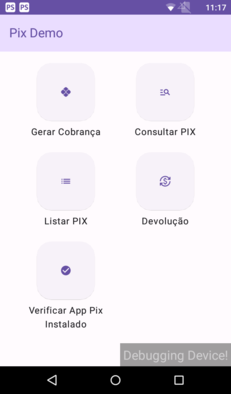
Main screen with the possible options of the Pix Smart demo App
On the home screen there are buttons with the possible options Generate Bill, Consult Pix, Consult List Pix, Refund, Refund by tx-id, Sync Data and Check Installed Pix App
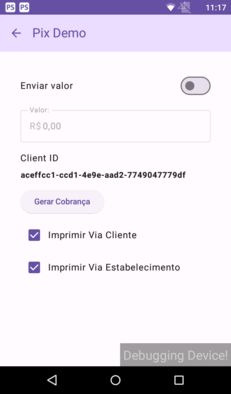
Billing Generation Screen, where you can enter the following information
- Select the option to Send the value, if selected it must be informed and otherwise the integration will request the value;
- Select which receipts will be printed, if both options are selected it will print copies of the customer and the Merchant.
Afterwards, the QR Code will be generated so that payment can be made.
Pix inquiry screen
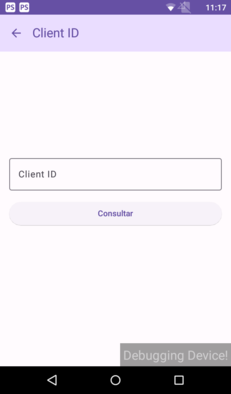
This screen displays two search options, Client ID and TX-ID.
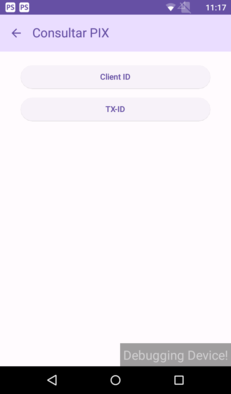
When the Client ID option is selected, you will be directed to the pix query screen by client ID, where you can enter the client ID generated at the time of billing.
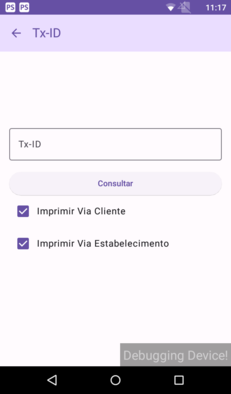
When the Tx-ID option is selected, you will be directed to the pix query screen by tx-id, where you can enter the following information.
- Enter the TX-ID to consult
- Select which receipts will be printed, if both options are selected it will print copies of the customer and the Merchant.
Pix listing screen
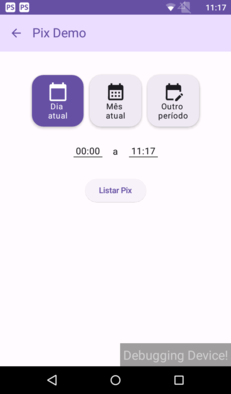
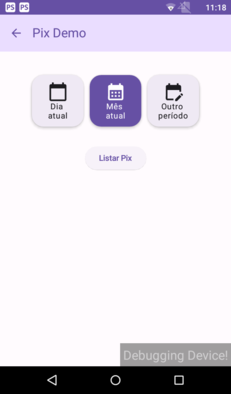
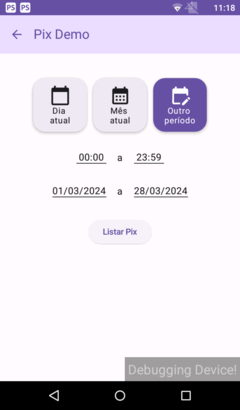
On this screen, three filtering options are presented: Current Day, Current Month and Other Period.
- Current Day: Displays all charges made, canceled or refunded on the current day, with the possibility of filtering by specific time.
- Current Month: Shows all charges made, canceled or refunded during the current month.
- Other Period: Shows all charges made, canceled or refunded during a specific date and time period selected by the user.
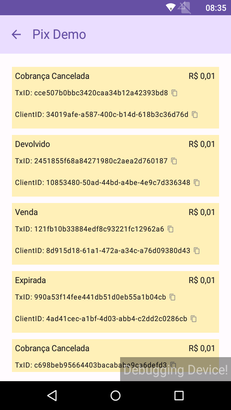
- After applying the selected filter, the complete list of charges is displayed, offering the possibility of copying the
tx-idandclient idof each charge, as illustrated in the image below.
Refund screen
- This screen will display a list of transactions for possible refunds.
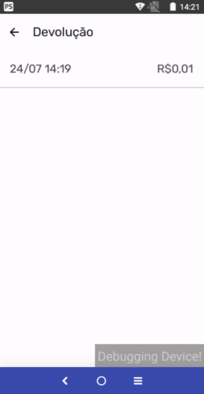
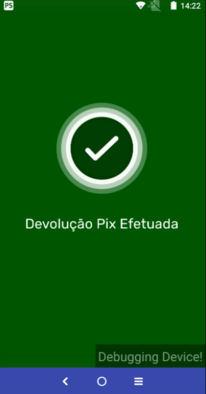
- In a successful case, the following message will be reported:
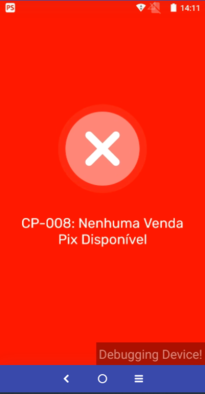
- If there are no transactions for refund, the following message will be informed:
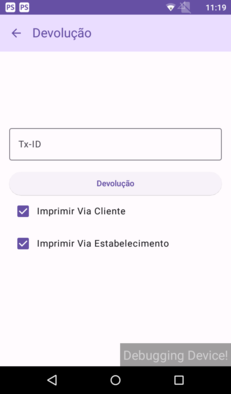
Refund by tx-id screen, where the following information is provided
- Billing Tx-id
- Select which receipts will be printed, if both options are selected it will print copies of the customer and the Merchant.
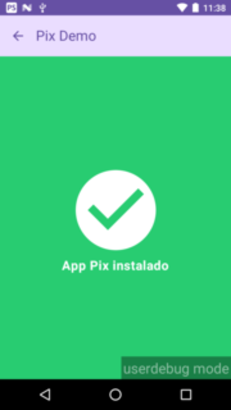
Screen to check installed pix app
This screen informs you whether the pix smart app is already installed, if it is already installed, the following message 'Pix App Installed' is displayed. It is extremely important that the pix smart app is already installed for the pix demo app to work.
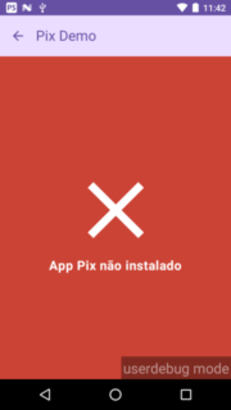
If the pix smart app is not installed, a screen will appear with the following message Pix app not installed.
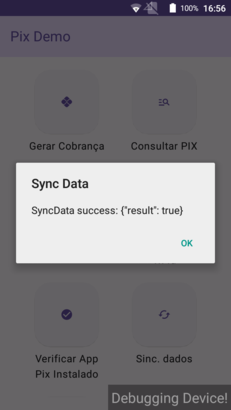
Data Sync Screen
When you click on Sync Data, a card will appear with the title "Sync Data" and the response to the request "SyncData success:("result )", and a confirmation button "ok".
Query Screen
When the query option is selected, it will direct to the screen for querying completed PIX transactions.
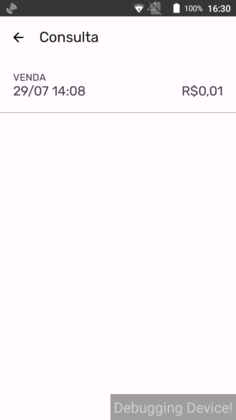
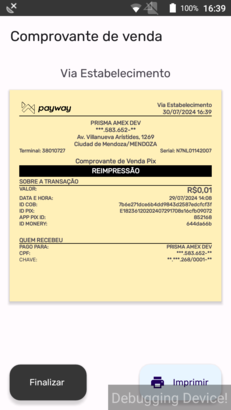
If a sale is selected, the application will query the PIX and take you to the sales receipt screen, store copy.